How to Use QuizSparrow on InQuizitive: Setup and First Activity
Thirty seconds to install. One click to start. A progress bar climbing toward the Target Score while you watch. That's most of the manual. Here's the part that actually matters: the slider, and the mistakes that quietly waste it.

What you need first
Three things, and you probably already have two of them.
Norton access
QuizSparrow works alongside InQuizitive, not instead of it. A code, a purchase, an ebook bundle, or the trial all count.
A supported browser
Chrome, Edge, Brave, Firefox, Opera, or anything Chromium-based.
A QuizSparrow account
Email and password, or one-click with Google. Whichever you prefer.
If the access-code part is unclear, InQuizitive access codes explained covers it in full.
Step 1: Install
1 Sign up and add the extension
Create your account, then add QuizSparrow to your browser. The install guide walks through it if you need it. Pin it to your toolbar so you can see it's active, though you won't need to click it during an activity.
That's the setup: nothing to configure, no settings to tune, about thirty seconds.
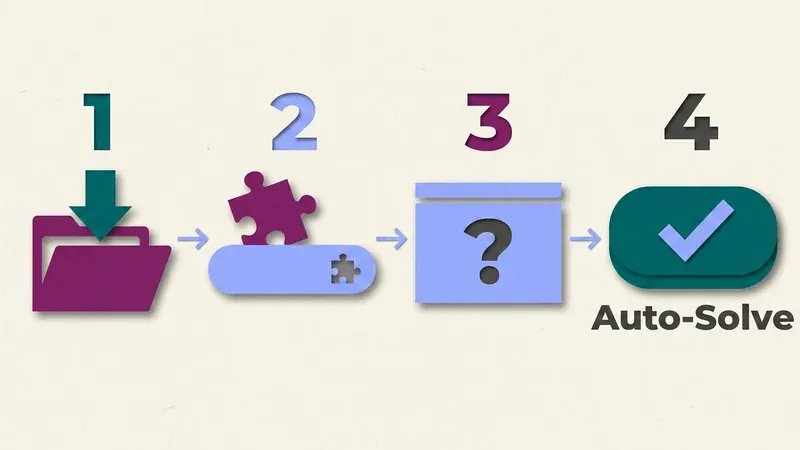
Here's the whole path from download to first solve, in one picture:
Step 2: Open your activity and launch Auto-Solve
2 Launch InQuizitive the way you always do
If your course is integrated with your campus LMS, launch from inside it: that's what makes your grade report automatically. Otherwise open it directly, entering your Student Set ID if you're prompted.
Don't change your workflow for the extension. QuizSparrow reads whatever InQuizitive puts on screen, so the normal route in is the right one, and launching from your LMS is still what gets your score into the gradebook.
Step 3: Let it run to the Target Score
3 Auto-Solve runs the activity to the target
QuizSparrow works through the question set, answering each item at full confidence, until the Target Score your instructor set is reached. A progress panel shows where it is, and you can pause or stop it at any point.
Auto-Solve isn't a hint you still have to act on yourself. It's the click, done at full confidence, all the way to the target.
The next section is why that finishes so much faster than working through it yourself: it's a scoring quirk, not just speed.
Step 4: Why the confidence slider is the whole trick
Your InQuizitive grade is the percentage of the Target Score you accumulate. Each question is worth 20 to 100 points depending on where you set the confidence slider. On a 1,000-point target, maximum confidence needs roughly 10 correct answers; minimum confidence needs roughly 50.
That 5× is the entire reason this finishes quickly. Working an activity by hand, you hedge low on anything you're unsure about, correctly, because you are unsure, so the target arrives slowly. Answering correctly at full confidence every time collapses roughly 50 questions into roughly 10.
Don't click on autopilot
A wrong first answer costs points you can only half recover on the second attempt. Nothing that reads a question is right every time, so autopilot clicking will occasionally cost you real points. Five seconds of reading the reason is the cheapest insurance in the system.
It compounds, too: five correct in a row earns a bonus worth 5% of the target, and a run that never breaks keeps earning it. More in the confidence slider explained.
Which question types it handles
All of them, because it reads the rendered question rather than matching against a lookup table built for someone else's textbook edition.
Multiple choice
The standard format, at full confidence like everything else.
Drag-and-drop
Sorting, ordering, and placing labels onto a diagram.
Click-on-target
A choice, a region of an image or map, a span of a sentence.
Labeling
Diagrams, figures, and maps, read off the rendered image.
Fill-in-the-blank
Typed answers, matched against the accepted set.
Click-on-target and labeling are where it's most obviously useful, since those are the ones no answer list could ever help with: it names the broken span in a writing question, reads the labels on a biology diagram, or works a map in a history course.
Which courses it works on
Every Norton InQuizitive course, because it doesn't rely on a per-textbook answer list. First-year writing, US history, sociology, psychology, American government, literature, biology: all the same, whichever title and edition your course adopted.
Course-specific pages are under courses if you want the detail for yours.
Common setup mistakes
Most support requests trace back to one of these, and none of them is actually a QuizSparrow problem.
Where setup actually goes wrong
- Never reloading the InQuizitive tab after installing. The extension attaches on page load; an already-open tab won't have it until you refresh.
- Skipping the pin step. It still works unpinned, but you'll waste time hunting for the icon the one time you need it.
- Opening InQuizitive outside your LMS launch link on an integrated course. The activity still runs, but your score has nowhere to land.
- Assuming the account needs configuring. There's no settings panel; check the account and the reload, not a hidden option.
Troubleshooting
Auto-Solve isn't showing up. Check the extension is enabled and you're signed in, then reload the InQuizitive tab: it attaches on page load, so a tab opened before installing won't have it.
It works on some questions but stalls on others. Usually a question still loading. Give it a moment after the question appears before it can read the page.
An answer looks wrong. It happens. Read the explanation before you trust the confidence level: if the reasoning doesn't hold up against the chapter, pause and check the ebook. Norton links it into the activity for exactly this.
Grade not showing in your gradebook. Not us: that's the Student Set ID or your LMS launch path. Covered in InQuizitive access codes explained. Ask your instructor rather than redoing the activity.
Using it well
The short version: install it, open the activity normally, read the reasoning as well as the result, and let Auto-Solve run at the confidence the questions deserve. Protect your streaks, and stop when the checkmark appears.
Keep the ebook open, too. Norton links it in, it isn't cheating, and between the reasoning and the chapter you've got everything you need to stop hedging, which, as how to finish an activity faster works through, is about forty questions you don't have to answer.
Frequently Asked Questions
Do I have to click through every question myself?
No. Auto-Solve works through the activity at full confidence on its own, question after question, until the Target Score is reached. Turn on the optional step-by-step reasoning, pause or stop it whenever you want, but there's nothing to click per question.
Where do I download QuizSparrow?
It isn't in the Chrome Web Store. QuizSparrow ships as an unlisted extension you download and load manually through chrome://extensions in Developer mode, the same install guide from Step 1.
Does QuizSparrow work with every InQuizitive course?
Yes. It reads whatever question InQuizitive renders, so it isn't tied to one textbook's answer list. That covers writing, US history, sociology, psychology, American government, literature, and biology, across editions.
Will my grade actually reach my LMS gradebook?
Yes, as long as you launch InQuizitive the way you normally do. If your course is integrated with your campus LMS, launch from inside it: that link, not the extension, is what reports your score.