How to Use InQuizitive: A Practical Walkthrough
A blank Student Set ID box. A slider you've never touched. A 'Take a Break' screen you didn't see coming. Nobody teaches you InQuizitive, you just get assigned one and start clicking. Here's the walkthrough that fixes that.

Before you start: know what you're aiming at
The single most useful thing to establish, before you answer anything, is your Target Score.
Your grade is the percentage of that target you accumulate. It's the finish line, and it's what makes InQuizitive different from a quiz: you're not working through a fixed list of questions, you're banking points until you hit a number. A course might hold well over a thousand questions. You'll see a fraction of them.
Knowing the number changes how you play. Which brings us to the walkthrough.
Step 1: Getting in
How you launch depends on your course setup.
If your course uses your campus LMS (Blackboard, Moodle, Canvas, D2L), open the InQuizitive activity from inside it. Your grade reports back automatically and there's nothing to configure. Do it this way if it's available: launching from the LMS is what makes the gradebook connection work.
If it doesn't, your instructor will have given you a Student Set ID. Enter it the first time you're prompted, or later from the account menu. This is what attaches your score to the right course. If your instructor isn't grading InQuizitive at all, you don't need one.
Either way you'll need access: a registration code (which comes free with new copies of select Norton titles), a direct purchase, or an ebook purchase that includes InQuizitive. New users get three weeks of trial access first, and the details are in InQuizitive access codes explained.
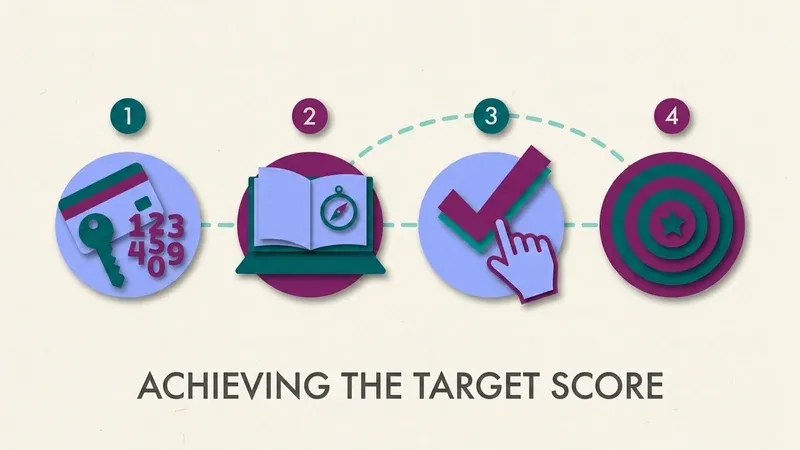
Laid end to end, the loop is short: access, activity, questions, target.
Step 2: Read the question properly
InQuizitive questions are all interactive, and the format varies more than students expect.
Multiple choice
The most common format, and where students get careless fastest.
Drag-and-drop
Sorting into categories, ordering a sequence, or placing labels.
Click-on-target
Clicking a choice, a region of an image or map, or a span of a sentence.
Labeling
Naming parts of a diagram, figure, or map directly on the image.
Fill-in-the-blank
A typed response, checked against InQuizitive's exact wording.
The click-on-target ones catch people out. In the writing modules especially, the question often isn't "which of these is wrong" but "click the exact part of this sentence that's wrong," and clicking approximately the right area is still wrong.
Step 3: Set the confidence slider deliberately
This is the decision that determines your evening.
Before answering, you set a confidence level, and it sets the question's value: 20 to 100 points. Same correct answer, five times the difference.
Don't hedge by default
On a 1,000-point target, maximum confidence gets you there in roughly 10 correct answers. Minimum confidence needs roughly 50. Hedging feels careful and is actually just the long route. And it's worse than that: a wrong first answer only lets you recover half the points you lost, so the protection you're buying is protection against a partly-reversible loss, paid for by an 80% cut on everything you get right.
InQuizitive doesn't grade what you clicked. It grades how sure you were before you clicked it.
Practical rule: go high when you're genuinely sure, go low when you genuinely aren't, and treat a session of constant hedging as a signal that you need the textbook open rather than a smarter slider strategy. Full breakdown in the confidence slider explained.
Step 4: Use the feedback, don't click past it
InQuizitive gives you feedback after every click, drag and keystroke, and it corrects you as soon as you head down a wrong path.
There is no "I give up" button and no "show me the answer". You cannot skip a question. That's deliberate: the feedback is the teaching mechanism, and it's the only one available.
So when you get something wrong on the first attempt, the temptation to click through to the second attempt fast is exactly the wrong move. Read what it told you. You only recover half the lost points either way; you may as well collect the understanding.
Step 5: Keep the ebook open
Norton links the ebook directly into the activity, including from the Take a Break screen. That's not a concession, it's the intended workflow: InQuizitive is practice tied to the reading.
Students ask constantly whether this counts as cheating. It doesn't; the tool is built around it. We deal with the question properly in is using your textbook on InQuizitive cheating.
Step 6: Watch for the streak
Five correct answers in a row earns a bonus worth 5% of the Target Score. On a 1,000-point target that's 50 points, and it repeats every time you string another five together.
This changes the calculus mid-activity. At four correct in a row, a guess doesn't just risk the question's points, it risks the bonus too. That's the moment to slow down and check the reading.
Step 7: Recognise the Take a Break screen for what it is
Five wrong in a row and InQuizitive interrupts you, offering the ebook, your activity report, or a return to the questions.
It's a nudge, not a penalty. But it's also a reliable diagnostic: if you're seeing it, you're in the spiral where wrong answers bring easier, lower-value questions and the target starts receding. Take the ebook option. Pushing on through is how a forty-minute activity becomes a three-hour one.
Step 8: Know when you're done
The activity ends when you reach the Target Score, or at the "Grades Accepted Until" deadline, whichever comes first. A green checkmark confirms your grade has been submitted. There's a minimum number of questions to answer before any grade is issued.
The line graph tracking your Activity Score is worth a glance. A flat line means you're hedging.
Mistakes first-timers make
Skip these on your first activity
- Not checking the Target Score first. It's the only number that tells you how much is left.
- Skipping the Student Set ID. Outside an LMS launch, your instructor never sees the score you earned.
- Racing past a wrong answer. The feedback is the only explanation you get; skip it and you'll repeat the mistake.
- Closing the tab at Take a Break instead of taking the ebook link it offers.
Using it well, in one paragraph
Launch from your LMS if you can. Find out your Target Score. Keep the ebook open. Set confidence honestly, and go high whenever you've earned the right to. Read the feedback on wrong answers instead of racing to attempt two. Protect your streaks. Stop when the checkmark appears.
And if you want to shorten the loop: QuizSparrow reads the question already on your screen and gives you a answer plus the reasoning behind it, which is exactly what the slider is asking you to supply. It's the difference between hedging at 20 and agreeing with a stated reason at 100.
Frequently Asked Questions
Do I need a Student Set ID to use InQuizitive?
Only if your course isn't linked through your campus LMS. Launch from Blackboard, Moodle, Canvas or D2L and your grade reports back automatically. Otherwise, the Student Set ID attaches your score to the right course.
Can I skip a question I don't know the answer to?
No. There's no "I give up" button and no way to reveal the answer. InQuizitive corrects you through feedback after every click, drag or keystroke, until you get it right.
What happens if I get several questions wrong in a row?
Five wrong in a row triggers the Take a Break screen, offering the ebook, your activity report, or a return to the questions. It's a sign you're drifting into easier, lower-value questions while the target recedes.
Is it cheating to keep the textbook open while I work?
No. Norton links the ebook directly into the activity, because InQuizitive is practice tied to the reading. More in is using your textbook on InQuizitive cheating.
How is my final InQuizitive grade calculated?
The percentage of your instructor's Target Score you've banked. Each question is worth 20 to 100 points via the confidence slider, a wrong first attempt recovers half on retry, and a five-answer streak earns a 5% bonus. Full arithmetic in how InQuizitive is graded.